 TikQo
TikQo


In an interactive live stream game, you're not the only one in control: the gifts, likes, follows and comments your viewers send change something in the game instantly. In this guide, we walk you step by step through adding a game like this to your TikTok LIVE, from start to finish.
What is an interactive live stream game?
In a classic gaming stream, you play and viewers watch. In an interactive game, viewers are part of the game too. When a viewer sends a gift, a new character can appear on stage; when likes reach a certain number, a bonus round can start; a new follower's name can be greeted on screen.
That way, viewers instantly see the result of their action on screen. And viewers who see that result stay on the stream longer, join the chat and interact again. We cover why engagement matters so much in our guide to boosting viewer engagement.
What do you need before you start?
TikQo games run on a Windows computer. You can go live from your phone or your computer, but the game itself has to run on a computer. In short, here's what you need:
- A computer running Windows 10 or 11 (64-bit). Macs and phones aren't supported at the moment.
- A TikTok account that can go LIVE. TikTok's requirements for going LIVE (such as age and account status) are set by TikTok and may change from time to time.
- A stable internet connection. An internet connection is required while the game is open, for license verification and LIVE events.
- A license code or a TikQo account. Games are purchased via WhatsApp; the product is added to your account or your license code is sent to you.
- Streaming software to put the game screen on your stream. TikTok LIVE Studio or OBS are the usual choices.
For more detail on computer specs and choosing streaming software, check out our computer and software guide for TikTok LIVE.
| Component | Requirement |
|---|---|
| Operating system | Windows 10 / 11 (64-bit) |
| Processor | 4 cores, 2.5 GHz or higher |
| Memory | 8 GB RAM (16 GB recommended) |
| Graphics card | DirectX 11 compatible |
| Disk | 1–3 GB per game |
| Internet | Stable connection |
Step-by-step setup
No technical knowledge needed. Follow the steps below in order and you'll be ready for your first stream within a few minutes.
1. Choose and buy your game
Browse the game list and pick a game that fits your streaming style. Each game's page lists what every gift or interaction does in the game. Can't decide? Just message us on WhatsApp and we'll work out together which game fits your stream.
Purchases are made via WhatsApp: you message us, the payment details are sent to you, and once payment is made the product is added to your account or your license code arrives via WhatsApp. Games are offered individually or as time-limited packages. Current prices and payment options are shared on WhatsApp.
2. Download and install TikQo Launcher
Download the installer from the download page and run it. Setup takes less than a minute, and the launcher updates itself automatically.
Your browser or Windows may show a warning for newly released programs; this doesn't mean anything is wrong with the file:
- If Chrome says "Suspicious download blocked", click the file in your downloads list (Ctrl+J) and choose Download suspicious file.
- If Windows says "Windows protected your PC", choose More info → Run anyway.
3. Sign in with your account or enter your license code
You can sign in to the launcher in two ways:
- With an account: If you've created an account on the website, you sign in to the launcher with the same email and password. The products you buy are kept in the "My products" section of your account and show up in the launcher automatically.
- With a license code: Enter the 16-character code you received, in the format
XXXX-XXXX-XXXX-XXXX. You can also add the code to your account.
There are two important things to know: the code is tied to the computer it's first entered on, and for time-limited packages the clock starts the moment you first enter the code. So you don't have to use the code right after you get it. If you switch computers, a transfer is done through WhatsApp support.
4. Download the game
In the launcher's Library, click your game and press the Install button. When the progress bar finishes, the Play button becomes active. If you bought a package, all the games in it are listed in your library. When a new version comes out, the launcher shows the Update button.
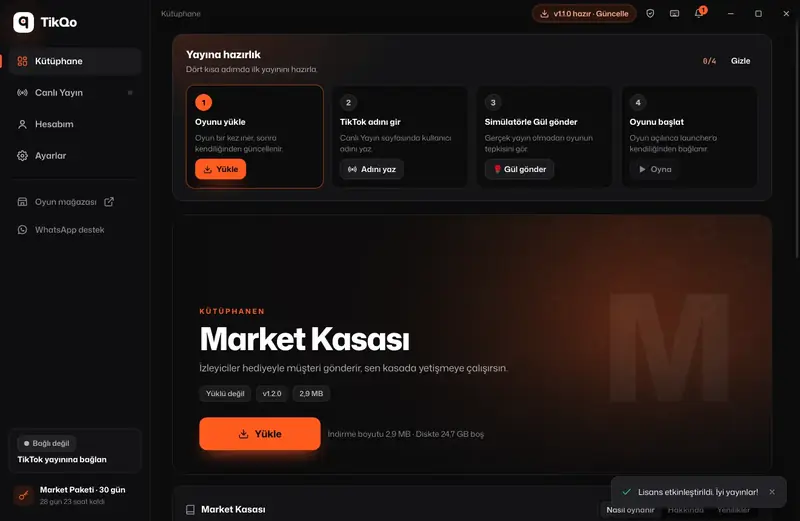
5. Connect to your TikTok LIVE
First, start your TikTok LIVE; you can go live from your phone or from TikTok LIVE Studio. Then switch to the LIVE tab in the launcher, type your username (for example @kullaniciadin) and click Connect.
You don't need to install a separate connection program; the LIVE connection is built into the launcher. If your stream isn't live yet, the launcher waits and connects automatically when it starts. You can watch incoming gifts, likes, follows and comments in the live feed.
6. Test before you go live
With the Test simulator in the LIVE tab, you can send gifts, likes and follows and see how the game reacts, without going live for real. Be sure to do a few test runs before your first stream: knowing in advance what each interaction does also makes it easier to explain it to your viewers on stream.
7. Launch the game and put the screen on your stream
Start the game from the launcher with Play. Add the game window in TikTok LIVE Studio or OBS as a Game capture or Window capture source.
If you stream from your phone
The game always runs on a Windows computer. Even if you go live from your phone, the launcher connects to your stream via your username and passes viewer interactions to the game. But for your viewers to see the game screen, that picture has to be sent to the stream; this is usually done from a computer with TikTok LIVE Studio or OBS. We compared which setup suits you in our computer and software guide.
Common problems
- "This code is being used on another computer": The code has already been linked to a different computer. Message us on WhatsApp to have it transferred.
- "Expired": Your package has run out. Message us on WhatsApp to renew it.
- "Streamer is not live": Start your TikTok LIVE first; the launcher connects automatically once the stream is on.
- Download stopped halfway: Check your internet connection and press Install again; the download is verified and resumes where it left off.
- Game won't start: Use the ⋯ → Verify files option on the game page.
For more questions and answers, see the FAQ page.
A few tips for your first stream
- Explain the rules at the start of the stream. A quick "this gift does this" makes it easier for viewers to join in. We explain how gifts work in games in our guide to gift-powered games.
- Highlight free interactions too. Likes, follows and comments also make things happen in the game; nobody has to send gifts.
- React out loud to interactions. Calling viewers by name when their name pops up on screen makes the stream feel personal.
- Make a pre-stream checklist: internet, launcher connection, game window, audio levels.
Get started now
You're ready for your first interactive stream. Pick a game for your stream from the game list, download TikQo Launcher and keep the setup guide open for details. If you don't have an account yet, you can create one. To buy or ask a question, message us on WhatsApp (0536 049 5274).
TikQo is an independent service and is not affiliated with TikTok or ByteDance.